Guides · Photos of people
Professional headshots and profile pictures from everyday photos
Turn a casual photo into a clean headshot for LinkedIn, Slack, a team page, or a speaker bio: choosing the right photo, background colors that flatter, and sizes for each platform.
By the developer of ImgCutout · Published · 5 min read
A professional headshot used to mean booking a photographer. For most uses, such as LinkedIn, a company team page, a conference speaker bio, or a Slack avatar, a good everyday photo with a clean background works just as well. This guide explains how to pick the right source photo, choose a background, and export the right size for each platform.
Start with the right photo
Removing the background fixes the background. It does not fix the photo. Look for these qualities in the original:
- Your face is sharp, especially the eyes. Zoom in to check. A slightly soft photo looks much softer once the background is clean and sharp edges draw attention.
- Even, soft light on your face. Window light from the side or front is ideal. Avoid harsh midday sun, which creates dark eye sockets, and overhead office lights.
- Shoulders included. A headshot usually shows the head and the top of the shoulders. A tight face crop leaves no room to frame.
- Camera at eye level or slightly above, from a little distance. Selfies at arm's length exaggerate the nose and shrink the ears.
- Clothes that contrast with the new background. A white shirt on a white background loses its outline; a dark jacket on dark gray does the same.
- Hair that is not blending into the original background. Dark hair against a dark wall is the hardest case for any cutout.
A photo taken by a friend with a phone's portrait lens (2x or 3x) near a window often beats an old professional headshot.
 Before
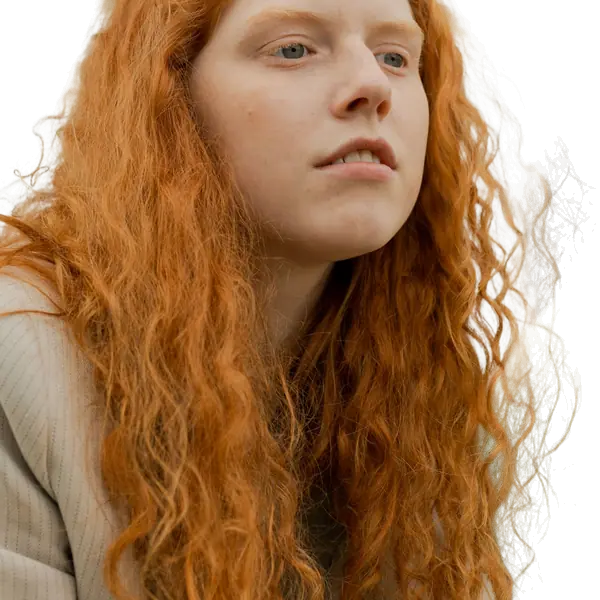 After
AfterChoosing a background that flatters
The goal of a headshot background is to disappear: it should frame your face, not compete with it.
| Background | Effect | Good for |
|---|---|---|
| Light gray | Neutral, modern, works with any skin tone and clothing | LinkedIn, corporate team pages |
| White | Clean and bright, but can wash out light clothing | Catalog-style team pages, ID-like uses |
| Muted brand color | Recognizable and consistent across a team | Company websites, conference speakers |
| Soft gradient | Studio-like depth, slightly more personal | Personal websites, portfolios |
| Dark charcoal | Dramatic, makes light skin and clothing pop | Creative industries, speaker slides |
Avoid saturated, bright colors (pure red, lime, electric blue) for professional headshots. They pull attention away from your face and make skin tones look off.
If your team is creating a set of headshots, choose one background color and use it for everyone. A team page where everyone is on the same color looks deliberate, even if the photos were taken in different places. The background remover lets you set an exact custom color, so you can share a hex code (for example #E5E7EB for a light gray) with the whole team.
Step by step
- Open the background remover and add your photo. It is processed in your browser; your photo is not uploaded anywhere.
- Check the edges around your hair and shoulders using the compare slider. If strands are missing, widen the edge in Settings; if traces of the old background remain, tighten it.
- Pick a background: a preset, a custom color, one of the gradient templates, or your own background image (an office or bookshelf photo, for example).
- Optional: apply a little retouching. A light touch of Smooth skin and Brighten skin can help a photo taken in poor light. Keep it subtle; see natural portrait retouching.
- Crop to the shape your platform needs (below) and download.
Sizes and shapes for common platforms
Most profile pictures are displayed as a circle, cropped from a square. Leave some space above your head and center your face, so the circle does not clip your hair or chin.
| Platform | Shape | Practical upload size |
|---|---|---|
| LinkedIn profile photo | Square, shown as a circle | 400 × 400 px or larger |
| Slack, Microsoft Teams, Google | Square, shown as a circle | 512 × 512 px or larger |
| Company team page | Usually square or 4:5 portrait | Ask your web team; 800 px wide is a safe start |
| Conference speaker page | Often square | 1000 × 1000 px |
| Instagram, X, GitHub | Square, shown as a circle | 400 × 400 px or larger |
Use the 1:1 crop preset for square profile photos and 4:5 for portrait formats. Uploading a larger image than the minimum is fine; platforms scale it down.
Using your own background image
Instead of a flat color, you can place yourself in front of a different photo, for example a blurred office or a plain textured wall. This can look natural if the light matches. Three tips make it convincing:
- Match the light direction. If light comes from the left on your face, it should come from the left in the background photo too.
- Use a blurred background. A sharp background behind a sharp face looks pasted on. Real portraits have a soft background because of shallow depth of field.
- Match the color temperature. A warm, yellowish face on a cool blue office looks wrong. Choose a background with similar warmth.
Headshots for a whole team
For a consistent set of team photos, agree on four things beforehand: the background color (one hex value), the crop (for example square, head and shoulders, eyes about a third from the top), the clothing guideline, and the file naming. Then each person can make their own photo, or one person can process them all. If there are many, the bulk background remover applies the same background to every photo at once.
Summary
A clean background turns a good everyday photo into a usable professional headshot. Start with a sharp, evenly lit photo that includes your shoulders, choose a quiet background such as light gray or a muted brand color, keep retouching subtle, and crop to a centered square with room around your head so circular avatars do not clip it.
Try it on your own photo
Free, no sign-up, and processed on your device. Nothing is uploaded.
Open the background removerRelated guides
- Natural-looking skin smoothing and brightening: how much is too muchPhotos of people
- Passport and ID photos: changing the background the right wayPhotos of people
- Why hair, fur, and glass are hard to cut out (and how to get better results)How it works
- Using transparent cutouts in Canva, Figma, Photoshop, PowerPoint, and CricutDesign & file formats