Guides · Online selling
How to make Amazon main images with a pure white background
What Amazon's main image rules actually require (RGB 255 white, 85% fill, 1000px+ for zoom), why phone photos fail them, and a repeatable workflow to fix a whole catalog.
By the developer of ImgCutout · Published · 6 min read
The main image is the one photo Amazon shows in search results, and it is also the one image with the strictest rules. A main image that does not meet them can be suppressed, which means your listing disappears from search until you fix it. The good news is that the rules are specific and checkable. This guide walks through what they say, why ordinary product photos fail, and how to produce compliant images for a whole catalog in one sitting.
What Amazon requires for the main image
Amazon publishes its image requirements in Seller Central, and some categories (clothing, jewelry, shoes) have extra style guides. The core rules for the main image across most categories are:
- Pure white background. Amazon specifies RGB 255, 255, 255. Off-white, light gray, and gradient backgrounds are not accepted for the main image.
- The product fills at least 85% of the frame. Measured along the longer side of the product, so a tall bottle should nearly touch the top and bottom edges.
- Only the product being sold. No props, accessories that are not included, extra items, or lifestyle scenes in the main image.
- No text, logos, borders, color blocks, watermarks, or graphics added on top of the photo. Logos that are physically printed on the product are fine.
- A professional photo of the actual product, not a drawing or illustration, and fully in frame (not cropped off at the edges, except for some categories such as large jewelry close-ups).
- Size: at least 1,000 pixels on the longest side enables the zoom feature, which Amazon recommends. Images can be up to 10,000 pixels on the longest side.
- File format: JPEG is preferred; TIFF, PNG, and non-animated GIF are also accepted.
Secondary images (the other slots) are more relaxed: lifestyle shots, size charts, and infographics are allowed there. Background removal is still useful for them, but the strict white rule only applies to the main image.
Rules differ by category and change over time. The list above was checked against Seller Central on the date shown at the top of this page; always confirm the current rules for your category before uploading a large batch.
Why phone photos fail the white background rule
Most sellers shoot on a white sheet, a sheet of poster board, or a light box, and assume the result is white. It almost never is. A camera exposes for the product, so a white backdrop typically comes out as light gray (around RGB 230 to 245) with a slight color cast from the room lighting. Corners fall off into darker gray, and the surface the product sits on picks up shadows.
You can check this yourself: open the photo in any editor with a color picker and click on the background in a corner. If the values are not exactly 255, 255, 255, Amazon's automated checks may flag it. Brightening the whole photo until the background clips to white usually blows out the highlights on the product itself, especially on white or metallic items.
Removing the background and placing the product on a generated, mathematically pure white canvas avoids both problems. The product keeps its original exposure and color, and the background is exactly 255 white, edge to edge.
 Before
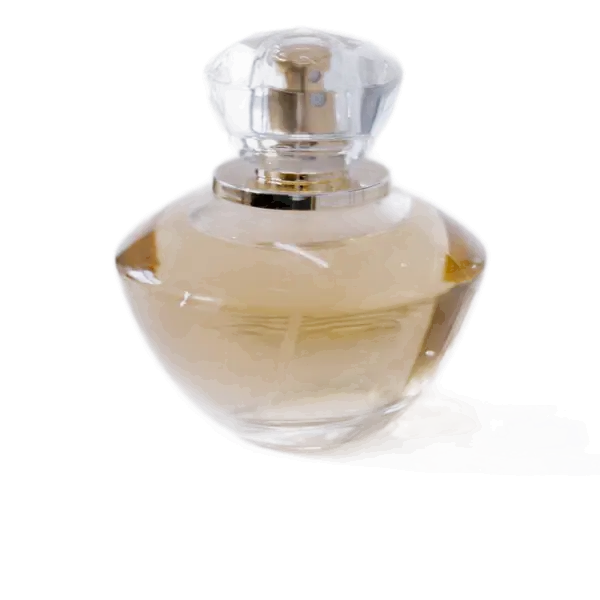 After
AfterStep by step: one product
- Shoot the product large in the frame, in focus, on a plain surface that contrasts with it. Leave a small margin around it so nothing is cut off. See how to shoot product photos for clean cutouts for lighting tips.
- Open the [bulk background remover](/bulk-background-remover) (it works for a single image too) and drop in the photo.
- Choose the Amazon preset. It sets a 2000 × 2000 pixel canvas, a pure white background, JPG output, and scales the product so it fills about 85% of the canvas along its limiting side.
- Check the edges. Zoom in on the preview. If a thin part such as a strap or a nozzle was dropped, or a halo of the old background remains, use the per-image edge control (Tighter or Wider) to adjust just that photo.
- Choose a shadow. Amazon allows a natural shadow under the product on the main image, and many top listings use one. "Ground" or "Soft" adds a subtle contact shadow that stops the product from looking like it is floating. If in doubt, None is always compliant. More in adding natural shadows to cutouts.
- Download. The file is a 2000 × 2000 JPG on pure white, well above the 1,000 pixel zoom threshold.
Step by step: a whole catalog
The same settings work for up to 100 images at once. Drop in the whole folder, pick the Amazon preset once, and every photo gets the same canvas size, framing, background, and shadow. That consistency matters more than it sounds: in search results, a row of products that all fill the frame the same way looks more professional than a mix of tiny and huge items.
Use the File names field to rename on export. For example, a template of "SKU-{n}-main" produces SKU-01-main.jpg, SKU-02-main.jpg, and so on, and "{name}-amazon" keeps your original file names with a suffix. Everything downloads as one ZIP. The bulk workflow guide covers naming, re-doing single images, and keeping batches consistent.
The 85% rule in practice
The fill rule is easy to misread. It is about how much of the image the product occupies, not about cropping. A wide, flat product such as a keyboard fills 85% of the width but very little of the height, and that is fine: the limiting side is the width. A tall, thin product such as a bottle is limited by height.
The Amazon preset scales each product so its longer dimension fills about 85% of the canvas and centers it. If your category's style guide asks for more fill (some sellers go to 90% to make small items look bigger in search), use the Product size slider to increase it for the whole batch or for a single image.
Common reasons a main image still gets flagged
- The background is white but the file is not. Exporting as PNG with a transparent background and letting Amazon fill it in is risky; export a JPG with the white baked in, which is what the preset does.
- Added text or badges. "Free shipping", "Best seller", or a size callout on the main image will get it suppressed. Put those on secondary images.
- Multiple items when you sell one. Show only what is in the box. Bundle listings can show all included items.
- Packaging instead of product, or vice versa, when your category expects the other. Check the category style guide.
- Too small. Under 1,000 pixels on the longest side loses zoom, and very small originals look soft when scaled up. Start from the largest photo your camera produces.
What the background remover cannot fix
Cutting out the background solves the white background and the framing. It does not fix a blurry photo, a product that is cut off at the edge of the original shot, or reflections of your room on a glossy surface. Clear glass and very shiny products are also harder for any AI to separate cleanly; see hair, fur, and glass edges for what to expect and how to shoot them.
Summary
A compliant Amazon main image is a sharp photo of only the product, scaled to fill about 85% of a square canvas of at least 1,000 pixels, on a background that is exactly RGB 255 white, with no added text. Shooting on a light backdrop gets you close; removing the background and placing the product on a generated white canvas gets you all the way, and doing it in a batch keeps your whole catalog consistent.
Try it on your own photo
Free, no sign-up, and processed on your device. Nothing is uploaded.
Open the bulk background removerOfficial sources (last checked October 2, 2026)
Rules change. If you spot something out of date, please let us know.
Related guides
- Product photo sizes and backgrounds for Amazon, Shopify, eBay, and EtsyOnline selling
- A bulk workflow for product photos: batch cutouts, naming, and ZIP exportOnline selling
- How to shoot product photos for clean cutouts (with just a phone)Online selling
- Adding natural shadows to product cutoutsOnline selling